 Hyprnux
Features
What the desktop does, in plain words. Each chapter links to its guide in the documentation.
Simple from the first minute
01
A first start that guides you, then a welcome card
On a computer installed from the Hyprnux installer image, with no account yet, a first-start assistant asks the language, the keyboard (with a box where you can try it), the time zone and the computer name.
Then it asks the disk passphrase, when one is needed, and your first account, with nothing to edit and no command to type.
Then the login screen shows your accounts, a clock and a password field, and a welcome card at your first login shows the launcher, the shortcuts, the Control Center and Settings. The Hyprnux menu in the bar opens it again. You choose the login screen’s style, background, logo and message in Settings.

02
One Settings app for the whole desktop
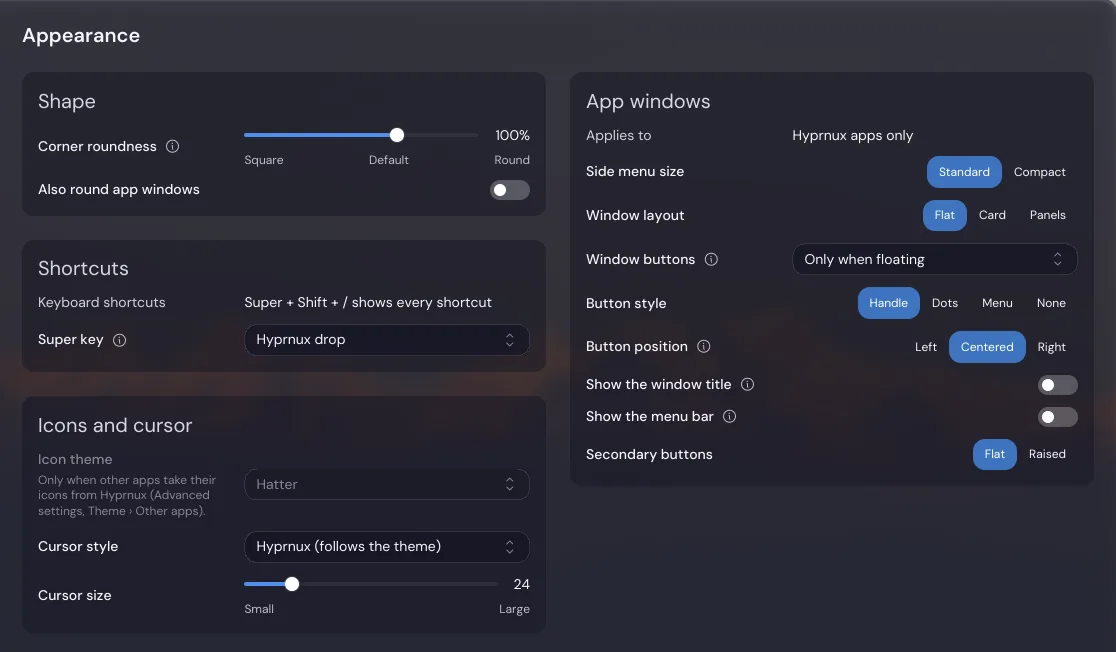
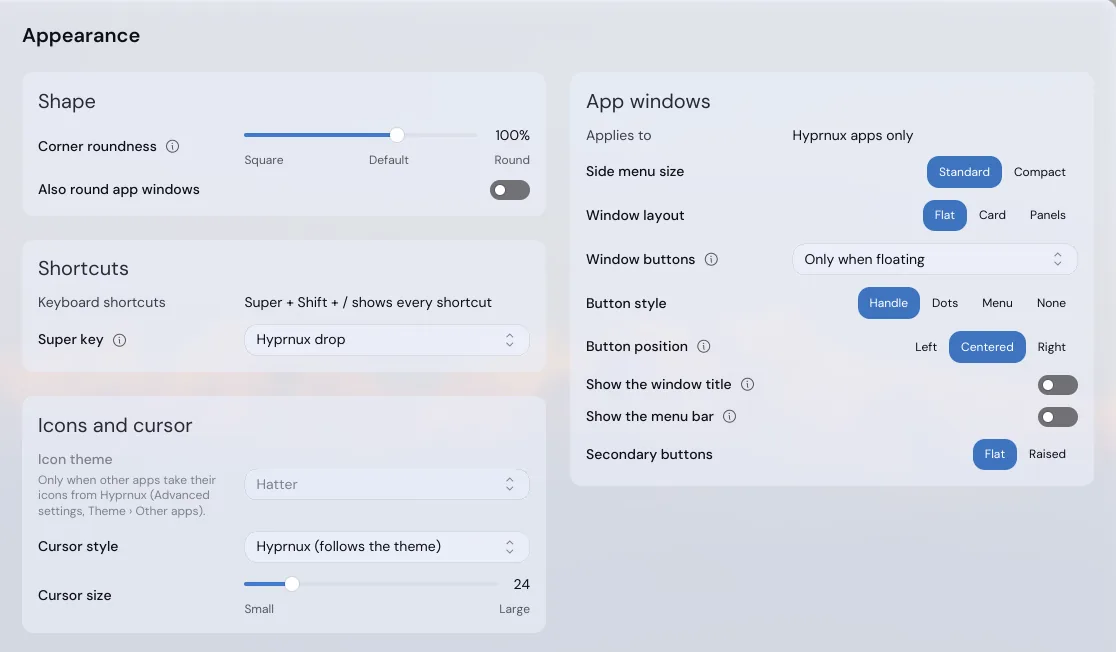
Settings sorts its pages into four categories: Personalization, Desktop, System and Applications. Open it with Super + I (Super is the Windows key, or the Command key on a Mac keyboard). Search finds any option, including the technical ones hidden by default. One “Advanced settings” switch shows or hides them everywhere, and a hint appears on hover, next to the option.
Changes are saved as you make them and the desktop shell (the bar, the launcher and the panels) applies them live. Changes that affect the whole computer ask for your password once, through the usual prompt, not a terminal. Settings is available in English and French.
03
A Store for apps, in plain words
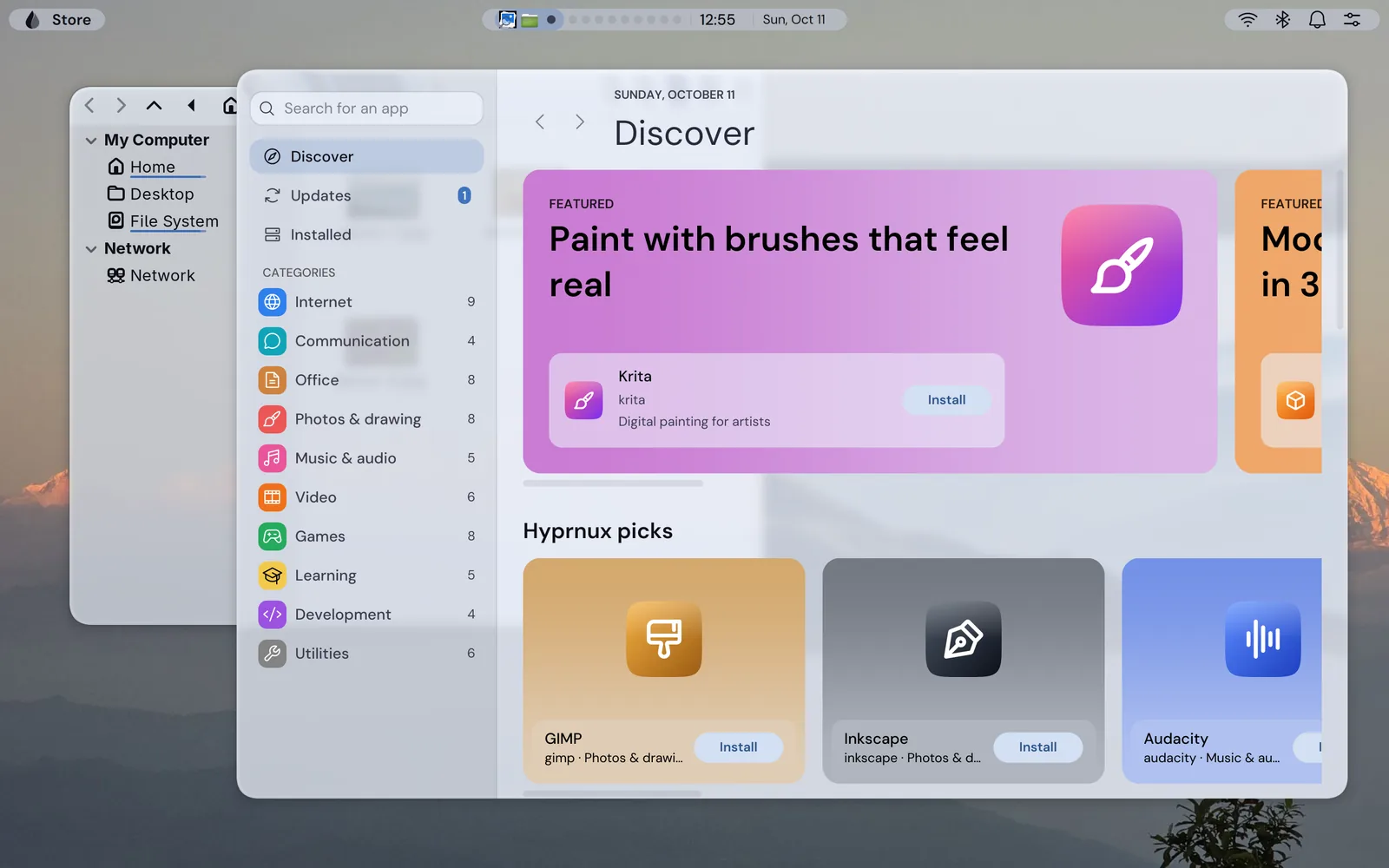
Open it from the launcher. Search for an app or browse ten categories, open its page and press Install. Before anything changes, a screen says what will be installed, how much is downloaded and whether a password or a restart is needed.
Fonts, drivers and libraries are kept apart from your apps, under System components. Update everything updates the system first, then each community app.
Community apps, from the AUR, are off by default: you read what will be built, and the Store asks for your password for each one. Hyprnux recommends apps but never vouches for one, and there is no account, rating or telemetry.
04
One box to find, calculate and run
Tap Super or press Super + Space and type. It opens apps (type ffx to find Firefox) and does sums and unit conversions, such as 5 km to mi. Start with one character to change what it does:
- > then a command: the launcher runs it
- : then a name: it finds an emoji
- ; then a word: it searches your clipboard history
It does not search files or the web. The clipboard history uses cliphist, which pacman installs with the shell. Super + V opens the clipboard history directly, and Super + Ctrl + Space opens the emoji picker.

05
Quick switches and a history of what you missed
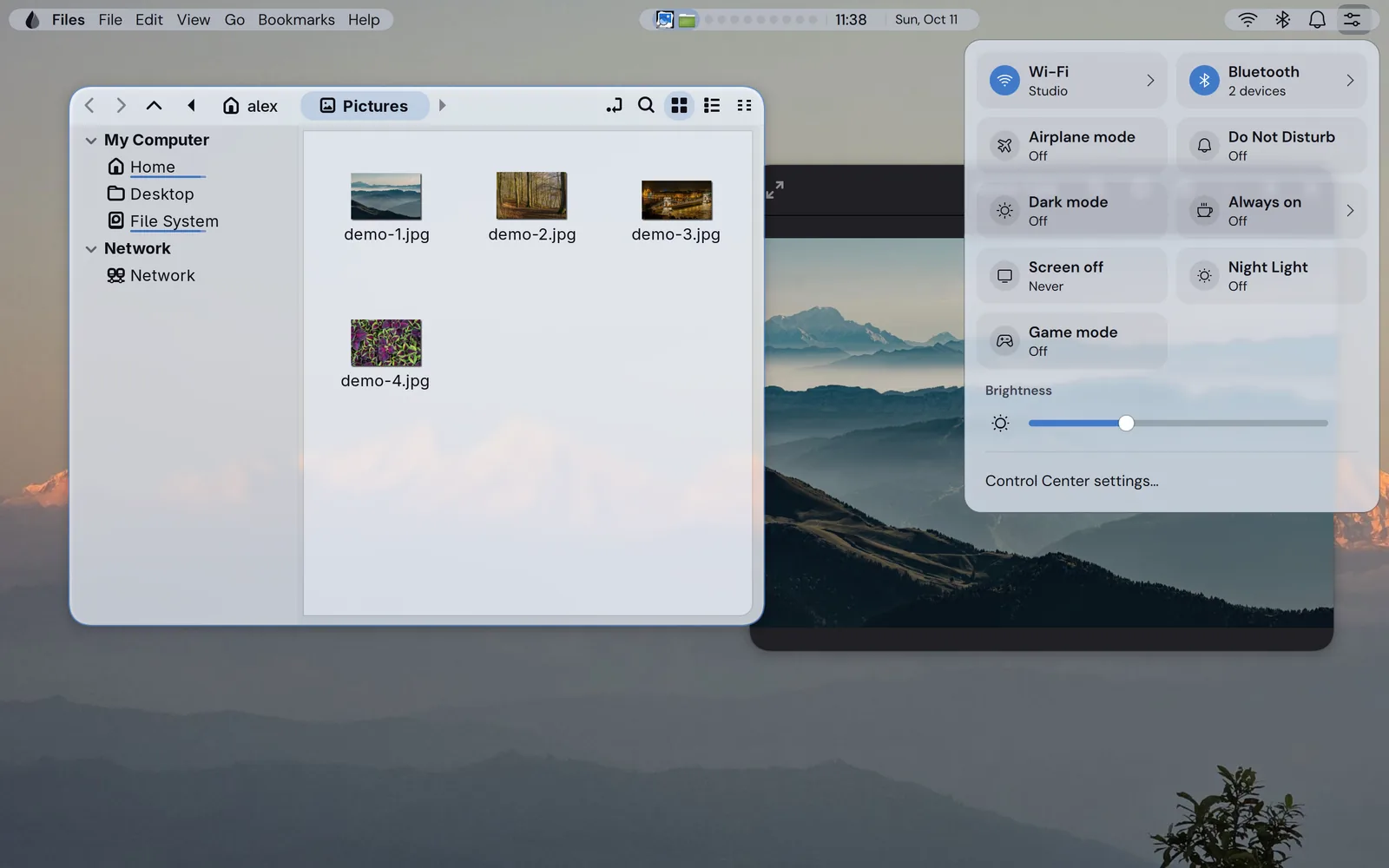
Super + C opens the Control Center: Wi-Fi, Bluetooth, airplane mode, Do Not Disturb, dark mode, Night Light, an “Always on” switch, brightness and sound sliders and a Now Playing card.
Notifications appear where you choose, at the top or the bottom of the screen. Super + N opens the history, newest first.

Yours to shape
06
A bar that is yours
Choose how the bar sits: floating as separate glass pills or as one full-width bar, or as one side of a frame that runs around the whole screen. Put it on the top, bottom, left or right edge.
Then choose what is in it and in which order.


Separate pieces floating at the edge: the default.Your desktop, your bar: choose the layout, the side and the items in Settings.One bar from edge to edge.Your desktop, your bar: choose the layout, the side and the items in Settings.One bar inset from the edges, with rounded corners.Your desktop, your bar: choose the layout, the side and the items in Settings.A frame around the whole screen, with the bar as one side.Your desktop, your bar: choose the layout, the side and the items in Settings.Top, bottom, left or right: the bar goes where you want it.Your desktop, your bar: choose the layout, the side and the items in Settings.
- App menu
- Workspaces (icons, dots or numbers)
- Window title
- Pinned apps
- One or several clocks
- Media
- System load
- Battery
- Sound
- Network
- Bluetooth
- Tray
Appearance
07
One look for the whole desktop
Choose light or dark, or let it switch at sunrise and sunset. Pick an accent color by hand or build it from your wallpaper, then set roundness, fonts, icons and cursor.
The bar, the notifications and the Hyprnux apps follow. Other apps follow only if you turn on “Apply to other apps too”, and you choose which parts they take.

08
Glass effects you can tune
The bar, the panels and the login screen are glass: they blur and refract what is behind them. Pick a glass style on the Glass effects page of Settings and watch it change in a live preview.
It needs Hyprglass, the glass effects plugin. Without it, panels are plain and solid.
Powerful when you want it
09
The terminal and your own files stay open
Under the interfaces it is a real Arch Linux: pacman and the terminal are fully there, and the desktop is open source.
Settings keeps its values in plain, documented JSON that you can edit, version or script, and the shell reloads it. A Settings page is one small JSON file you can add yourself; it is data and cannot run code.
Your own ~/.config/hypr/custom.lua is loaded last and always wins, and a hyprland.lua of yours is never replaced: two lines load the shell and Hyprglass, or just one part such as Settings.
Each part builds from its sources, and the firewall, time servers and audit rules have documented files.
- Real Arch Linux
- Documented JSON files
- Your own file loads last
Write your first pageCustomize the Hyprland configurationSystem policies
Calm updates and three editions
10
Three ways to take updates
Hyprnux comes in three editions that share the same desktop. Community takes Arch’s packages as soon as they are published.
Pro and Enterprise add a hold-back setting, off by default, designed to take Arch packages as they were 7 and 30 days earlier, so that other machines meet a broken update first.
Pro adds an optional system password rule. Enterprise adds an audit trail of system changes and of commands a person runs as root.
Every edition installs the same desktop; the Enterprise tools are listed on the Editions page. Every edition installed from the Hyprnux installer image also has an encrypted disk, a firewall and secure time sync.